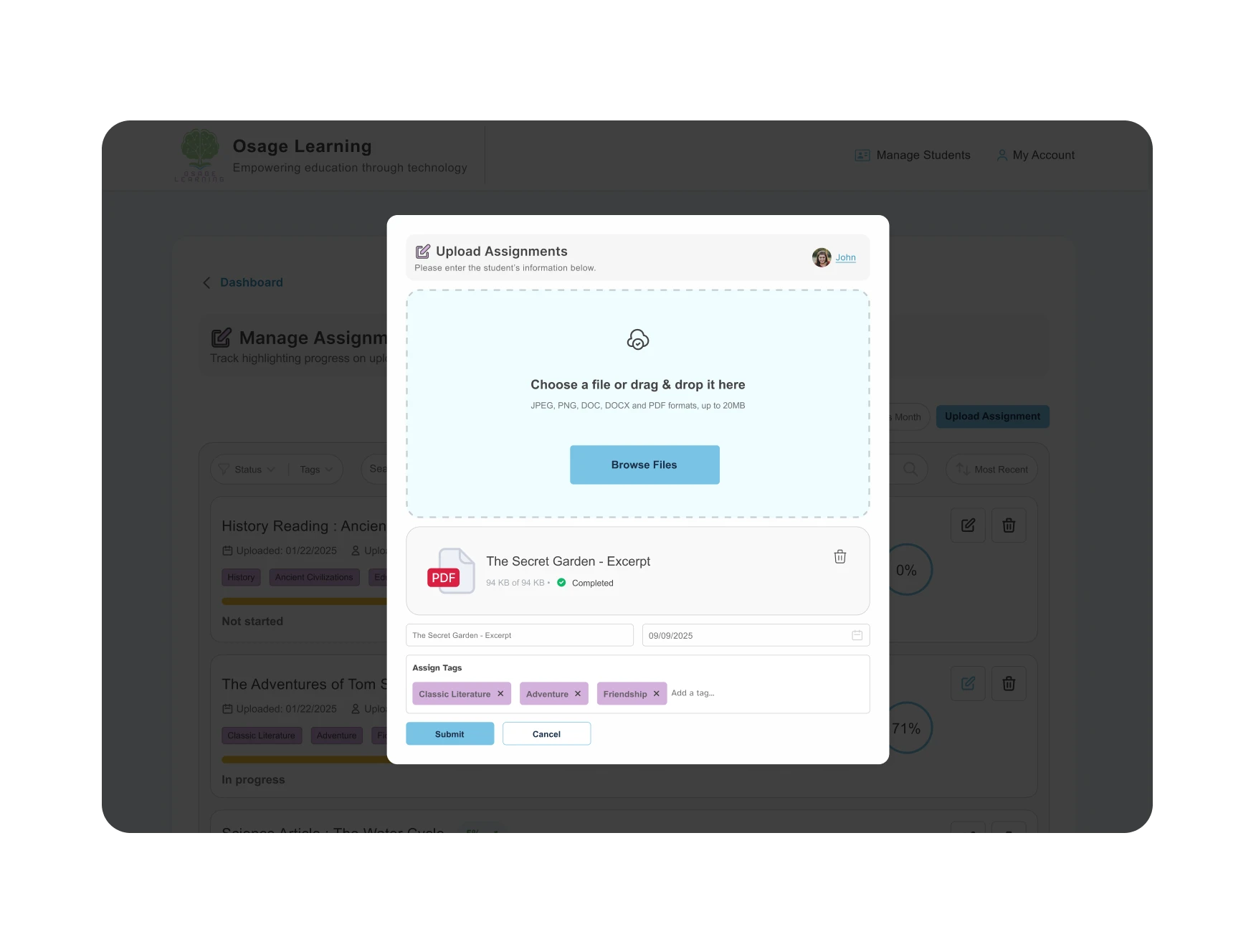
Parents and students can each upload assignments into the student’s reading module dashboard.
- Step 1 (Parents): In the student’s profile, go into the Reading Module and use the Upload Assignment button.
- Step 1 (Students): From the student’s reading dashboard, go down to the Assignments section and click on Upload Assignment.
- Step 2: After clicking the Upload Assignment button, drag the file into the upload area or browse your computer for the assignment. Give the assignment a name and a due date. You can assign premade tags or create custom tags for the assignment to allow for easier searching of uploaded content.
- Step 3: Once the assignment is uploaded, it will be show in the assignment list. Click on either the assignment name or the Read button to begin working on the assignment.
- Any highlighting performed within the assignment will be saved and show up the next time you enter the assignment.
- When finished with the assignment, use the submit button at the bottom of the page to lock the file from changes and show that the assignment is complete.
NOTE: If you have any trouble with a PDF or JPG assignment rendering correctly, have the parent upload a ticket with the document attached and we will take care of it for you.